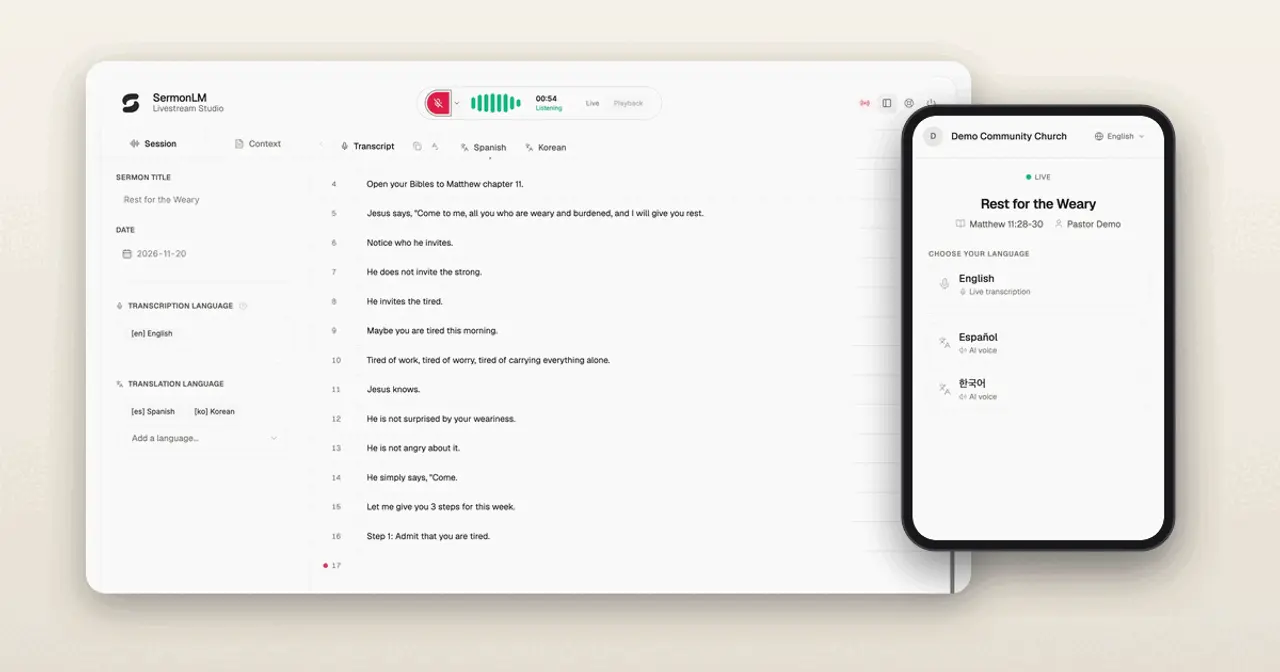
Test sermon translation with a recording
Test live sermon translation before Sunday using a recorded sermon in Chrome or Edge. Follow Playback capture steps and check guest audio on your phone.
SermonLM Team · · 6 min read
Last updated 2026-11-24. Steps checked in the help pages on 2026-11-23.
It is a weekday evening, and a sound-desk volunteer wants to hear sermon translation before guests arrive on Sunday. SermonLM is live sermon translation for multilingual churches. On a computer, use Playback in Chrome or Edge to capture a recorded sermon from another tab. Then open the guest link on your phone and listen with earbuds.
What do you need before you start?
You need a computer with Chrome or Edge, a recorded sermon, your phone, earbuds, and a stable internet connection.
- Browser: Use a normal browser window. SermonLM keeps a local copy of the text in browser storage while the session runs.
- Computer: Playback is available on a computer only. Keep the computer on power and awake.
- Internet: The studio needs a stable connection of at least 5 Mbps upload.
- Recording: You can use a past sermon video, for example from your YouTube channel.
- Phone: It needs a web browser. It can use the church Wi-Fi or your phone data.
Playback uses the service like a live sermon, so keep the test short. See current plans and usage terms.
How do you run a Playback test?
Open the recording, start a sermon in SermonLM, choose Playback, and share the recording tab's audio.
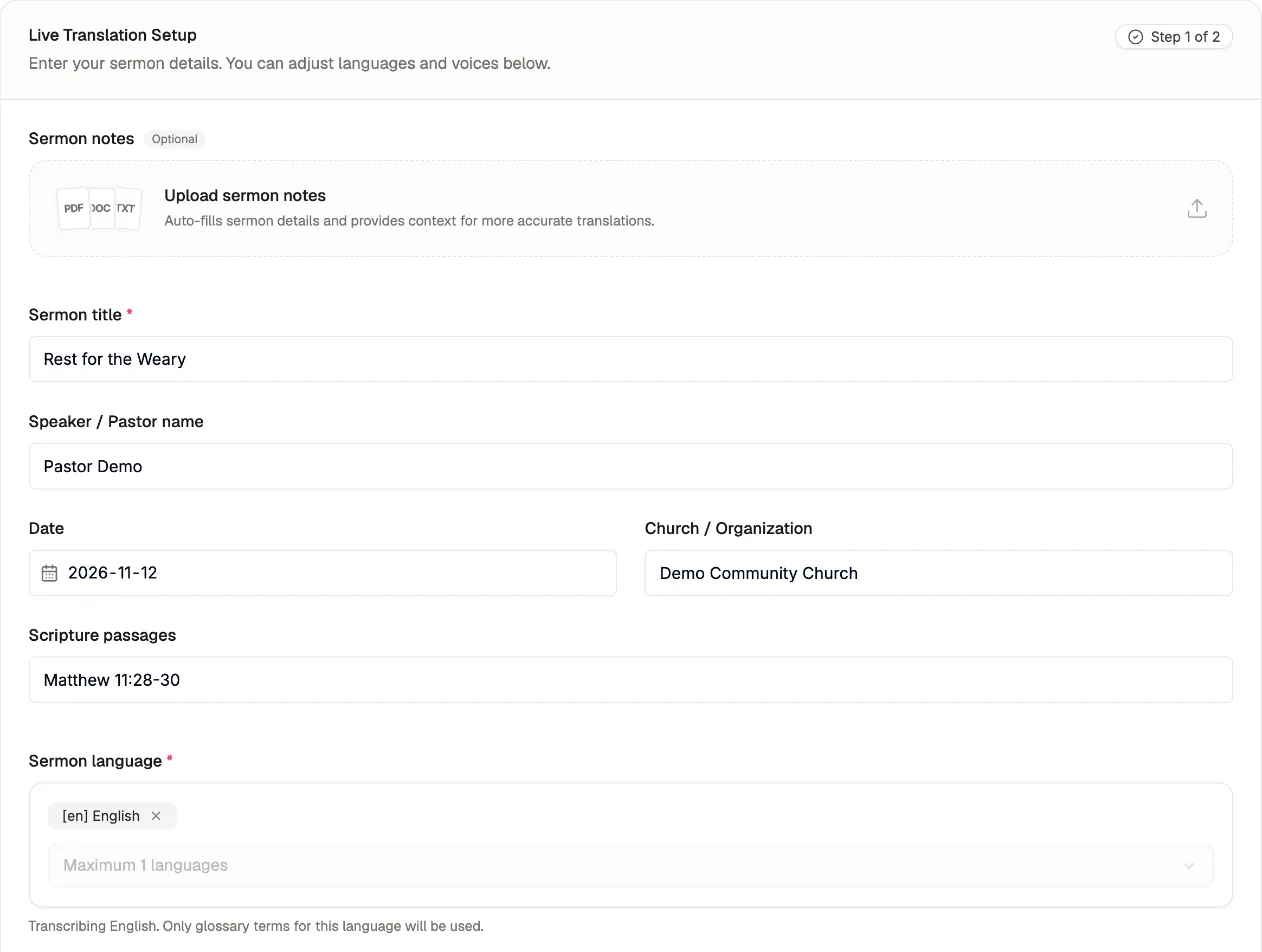
Set up the sermon
- Open the recorded sermon in another tab of Chrome or Edge, and leave it paused.
- Press New Livestream on your SermonLM dashboard.
- Enter Sermon title, Speaker name, and Scripture passages.
- Check Date and Church / Organization.
- Choose Sermon language to match the language spoken in the recording.
- Choose your Translation language(s). A card appears for each one.
- Choose a Bible version in each card, if one is available.
- Choose AI Voice or Text Only for each card.
- Choose a voice and a Tone if you selected AI Voice.
- Press Preview Translations, and correct any field that needs a change.
- Press Start Session. The Livestream Studio opens and guests can join.
You can use Upload sermon notes before filling in the fields. It accepts PDF, DOCX, and TXT files. Check the fields it fills in.
Play the recording and listen
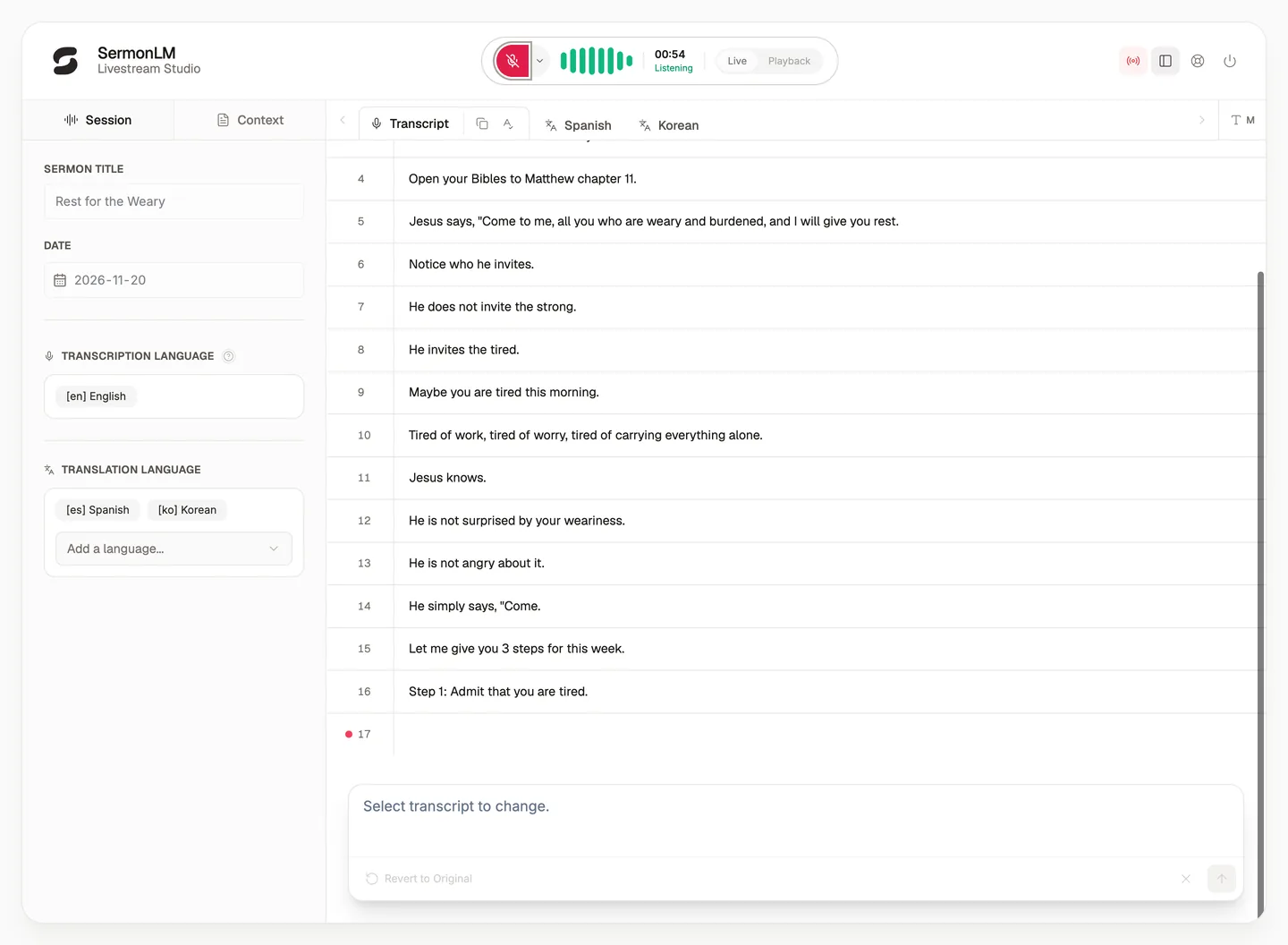
- Choose Playback beside the microphone control. The capture button changes to playback mode.
- Press Start playback capture. The browser's sharing picker opens.
- Select the tab with the recording.
- Check that its audio will be shared. Browser sharing labels vary.
- Confirm sharing in the picker.
- Play the recording. The studio should show Listening and new lines in Transcript.
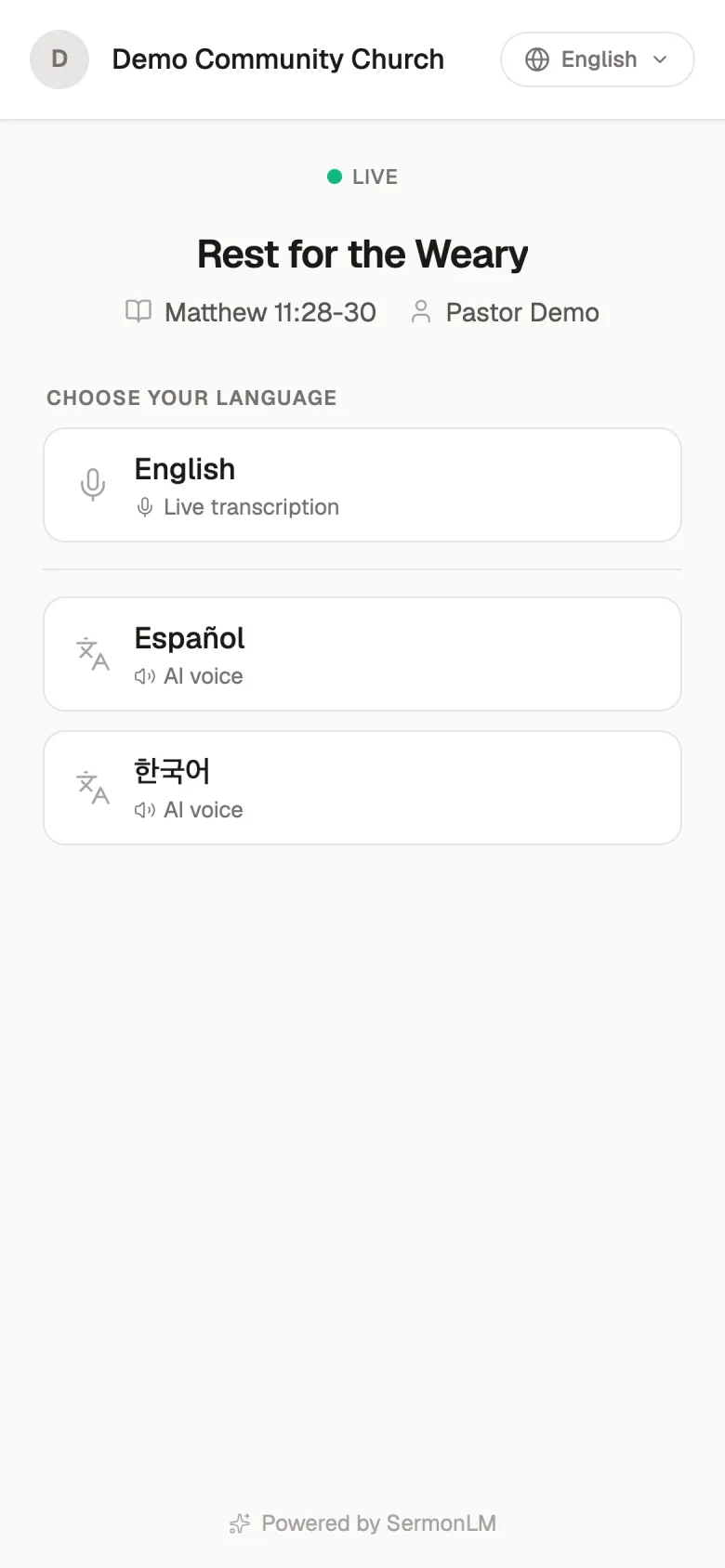
- Scan the church's QR code with your phone, and open the link.
- Tap the sermon card if the church lobby appears.
- Choose the AI voice row for your language under Choose your language.
- Tap Start audio if it appears, and listen with your earbuds.
End the test
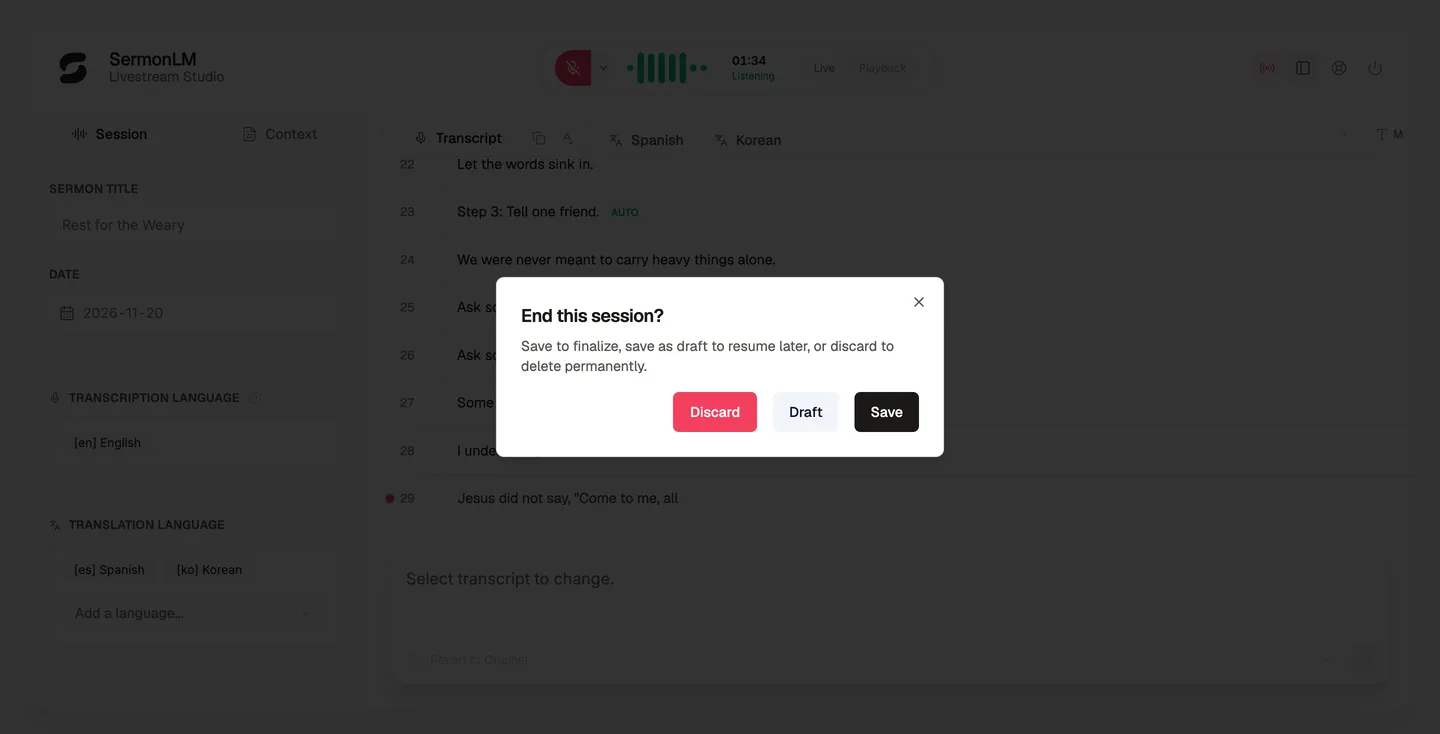
- Press the power button, End Session, at the top right of the studio.
- Choose Save to keep the text for review, or Discard to delete the session.
- For Save, wait until Session saved successfully appears. Keep the computer awake and connected.
- For Discard, press Click again to confirm within 3 seconds, only if you intend to delete it.
What should you check on your phone?
Check the sound on a real phone, because moving text in the studio does not tell you what guests hear.
- Joining: See the guest page open in the phone's browser. Guests need no app and no account.
- Delay: Text appears a few seconds after the pastor speaks. AI voice follows a little later.
- Languages: Tap the left arrow, Back to language selection, to switch.
- Church terms: Add your own terms in Glossary. They apply to a language only when you set Translate To.
What if the transcript or audio stops?
Check the shared tab if the transcript stops, and the phone if a guest hears nothing.
The transcript does not move
- Check that the chosen tab is playing.
- Check that audio sharing is on.
- Press Start playback capture again if browser sharing stopped.
A guest hears nothing
- Ask which row the guest chose. Text only has no voice.
- Ask them to press Start audio if it is shown.
- Ask them to tap the speaker button, Unmute audio, if they turned the sound off.
- Ask them to raise the phone or headphone volume.
- Check the language's delivery in the studio. It needs AI Voice for computer speech.
- Compare a second phone. If only one is silent, check that phone.
You are testing on one laptop
Use headphones if you play the AI voice on the same device.
Limits to keep in mind
Playback needs a computer and internet, and these other limits apply too.
- Tab sound: Playback captures the sound of a browser tab. The Live input choice uses the microphone or sound desk instead.
- Internet: SermonLM does not work offline.
- Spoken words: It translates sermons, prayers, Bible readings, and announcements. It does not translate hymns or worship music, so press Pause during music.
- Sessions: One account runs one live session at a time.
Before Sunday, read how SermonLM connects your sound mixer to guest phones. Then, with a helper and a live microphone, test live sermon translation before Sunday.
Questions churches ask
These are short answers for your test.
Can I run Playback from a phone?
No. Playback works only on a computer, in Chrome or Edge.
Does the QR code change after my test?
No. The QR code for your church lobby stays the same each week.
Can we review the words after the test?
Yes, if you choose Save. You can read and search the transcript and each translation. You can also download them as text, Word, or subtitles (.srt).
Can we also test livestream captions?
Captions have their own guide. Read how to add live sermon captions in OBS or vMix.
Next step: create your church account and test Playback with a recorded sermon.