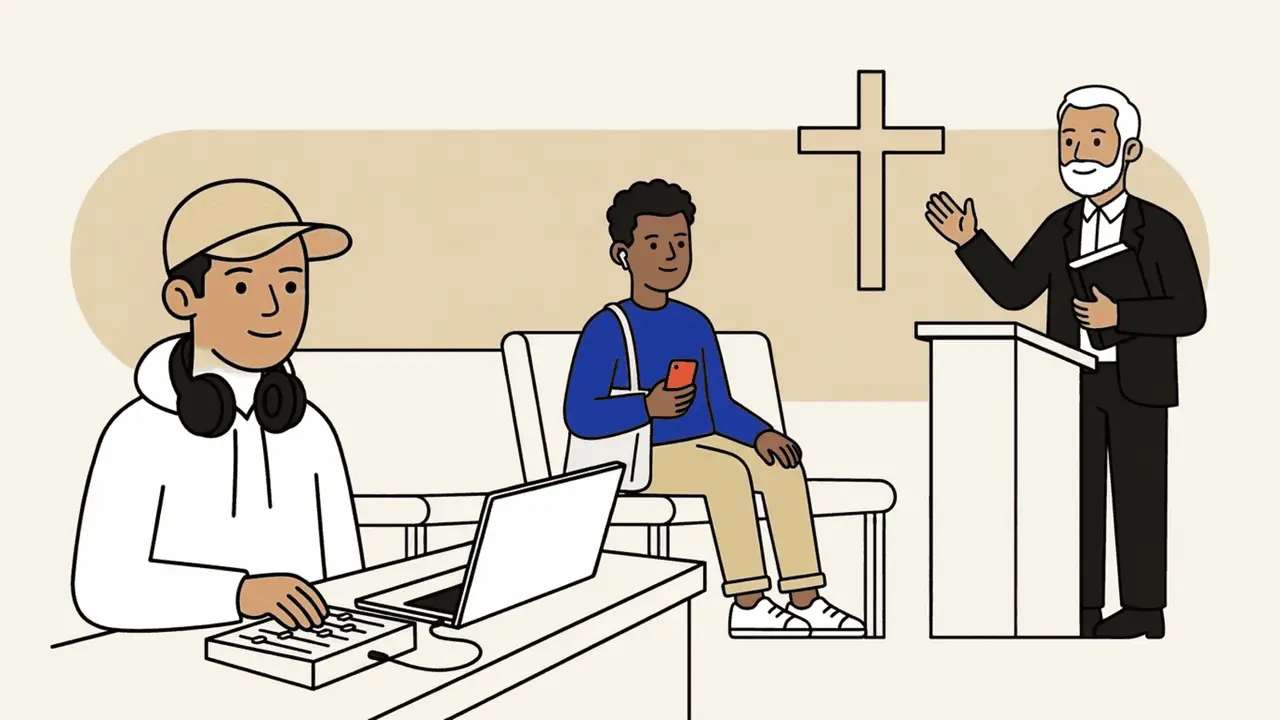
Run live sermon translation on Sunday with one volunteer
Run live sermon translation on Sunday with one volunteer: start speaker audio, pause during hymns, check guest links, and fix transcript words.
SermonLM Team · · 7 min read
Last updated 2026-11-25. Steps checked against the SermonLM during-the-sermon and end-the-sermon help docs on 2026-11-25.
On Sunday morning, one volunteer at the sound desk often manages audio, slides, and livestream together. SermonLM is live sermon translation for multilingual churches. Keep the studio tab open on a powered laptop, then press Start recording before preaching. Press Pause during hymns, check the broadcast panel, and fix stray words in Transcript.
Before your first live service, walk through the weekday rehearsal checklist or run a recorded sermon test with Playback. You can also review how SermonLM connects your sound desk to guest phones and keep the live studio help page open at the booth.
Start the speaker's sound
Connect your laptop to power, keep the screen awake, and turn on the speaker's audio input before preaching begins.
- In Live mode, allow browser microphone access when the prompt appears.
- Open the arrow beside the microphone button if your browser lists more than one input. Select Microphone opens.
- Choose the speaker's microphone or your sound desk feed.
- Press Start recording. When the audio connection is ready, the status changes to Listening.
- Speak a short test sentence into the selected input and confirm words appear in Transcript.
- Open a translation language tab and check that translated lines appear beside the original words.
You can switch inputs while recording if needed. The sermon continues on the new input, and a paused session stays paused. If the new input cannot open, the previous input keeps running and a message alerts you.
If you reload the studio page while recording, the microphone restarts after a brief pause. Confirm the status returns to Listening, or press the microphone button again. A paused microphone stays off after a reload, and opening a new tab does not start recording.
Ask a helper in the sanctuary to open the guest page with headphones. Moving words on your screen confirm that audio is arriving, not that a guest phone plays sound.
Pause during hymns and worship music
SermonLM translates spoken words: sermons, prayers, Bible readings, and announcements. Pause the studio whenever the congregation sings hymns or worship music.
- Press the microphone button while it is recording.
- When Pause the sermon? appears, press Pause.
- Confirm the status changes to Paused. Live words and AI voice stop, and the session clock stops so paused time does not count.
- Press the microphone button again when the pastor resumes speaking.
If your church has a human interpreter running a live room, open translator rooms keep going while the studio is paused.
Check the guest link and connection
Use the broadcast panel at the top right to confirm your connection, share links, and monitor remaining service time.
- Move your pointer over the red broadcast icon at the top right, or tap it, to open the broadcast panel.
- Read the connection status, listener count, and remaining service hours or credit.
- Copy This sermon only if someone needs a link for today's session alone. Share Lobby and its QR code for your permanent weekly church link.
- On pay as you go, watch for Credit is running low or Credit is used. The active sermon keeps going, and you can add credit before the next service.
During a long session, the studio prompts Still going? while the sermon continues. Press Keep going to continue, or press End now to finish and save. If nobody answers, the sermon ends and saves automatically so an open microphone does not keep running.
If you also display captions on your church stream, follow our guide to livestream captions in OBS.
Check each translation and translator room
Switch between language tabs during the sermon to verify output and support live human interpreters.
- Open a language tab, such as Spanish, to view original words beside the translation.
- Check the delivery choice at the bottom. AI Voice plays computer speech, while Text Only shows text.
- To add a language mid-service, open Session and select Add a language... under Translation Language. On a narrow screen, open Session and context at the top right first.
- New languages start as text. Open the new language tab and select AI Voice if guests need audio.
Your church plan sets how many AI translation languages a sermon can run, and an added language stays until the sermon ends. Human interpreter rooms are separate and do not count toward that AI language limit.
Each live human interpreter room appears as its own tab. Open that tab to check room status (Ready, Live, or Connection lost) and press Listen to check audio. You can also send quick replies (Sound is fixed, Please wait, or Slow down).
Fix a word in the live transcript
If a name or church term comes through wrong while the pastor speaks, correct it directly in the Transcript tab.
- Open the Transcript tab.
- Select the line that needs a change. Its words load into the edit box at the bottom.
- Type the corrected wording in that box.
- Press the arrow button, Change. The line updates and SermonLM generates its translations again.
Select Revert to Original if you need to restore the first wording.
End and save the finished sermon
When the speaker finishes, press End Session at the top right and choose Save in End this session?. Keep the tab open until Session saved successfully appears. For draft or recovery details, see the end-the-sermon help page.
Limits to plan around
Keep these boundaries in mind when one volunteer runs the booth on Sunday.
- Moving text in the studio does not prove a guest phone is playing sound. Always check with headphones on a guest device.
- A listener count in the broadcast panel does not confirm that guests hear audio.
- Correcting a transcript line updates the text, yet it cannot undo words guests already heard.
- There is a short delay. Text appears after the pastor speaks, and AI voice follows a little later.
- SermonLM requires a stable internet connection and does not work offline.
- One account runs one live session at a time. The sound-desk audio cable has been tested with a laptop only.
Questions churches ask
Here are four common questions from volunteers running live translation on Sunday morning.
How do I know SermonLM is hearing the pastor?
Check that the studio status shows Listening, speak a short test line into the selected input, and watch for words to appear in Transcript.
What should I do during hymns and worship music?
Press the microphone button and select Pause. Live text, AI voice, and the session clock stop until you press the microphone button again.
How do I check that guests can hear the translation?
Ask a helper to open the guest link on a phone with headphones. Text movement and listener counts alone do not confirm audio playback.
What happens if the studio page reloads during the sermon?
If the microphone was recording, the studio restarts it after a brief pause. Verify the status returns to Listening, or press the microphone button.